
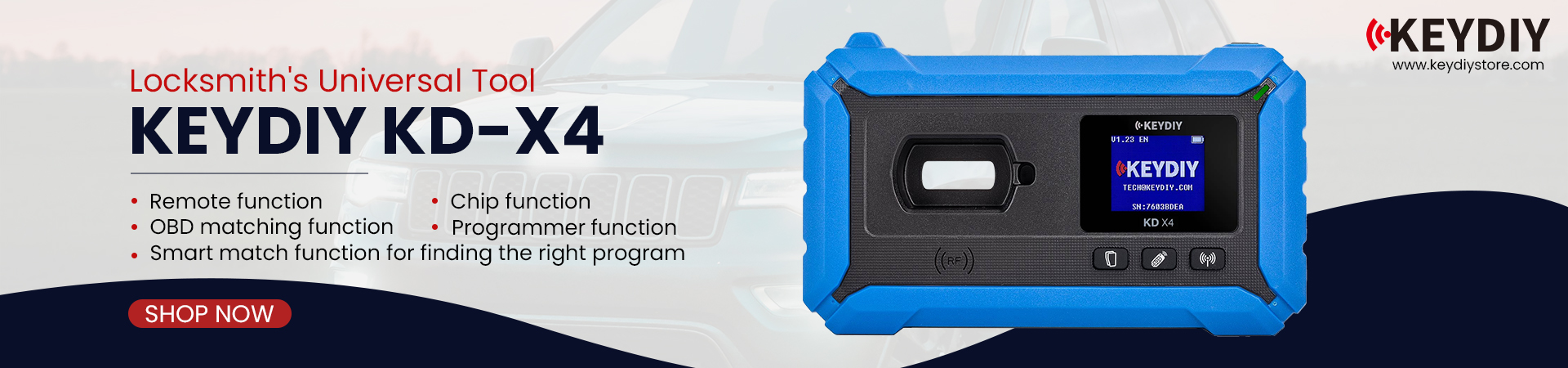
In this guide, we’ll walk through its core functions based on real-world usage, including key detection, remote copying, frequency scanning, and advanced features like battery/leakage checks.
1. Setup & Connection
- Download Mobile KD App from App Store or Google Play.
- Long-press the power button to turn on KD-X4.
- In the app → Bluetooth settings → Search & connect to KD-X4 (confirms “Connected”).

- For basic tasks (detection/copy), no app needed — use the three buttons directly.
2. The Three Main Buttons (Switch modes by long-pressing)
Button 1: Transponder / Key Detection
- Short press: Place key on induction coil → Detects type (e.g., AA, P4, MLB original) + ID (e.g., 40D) + full chip info.


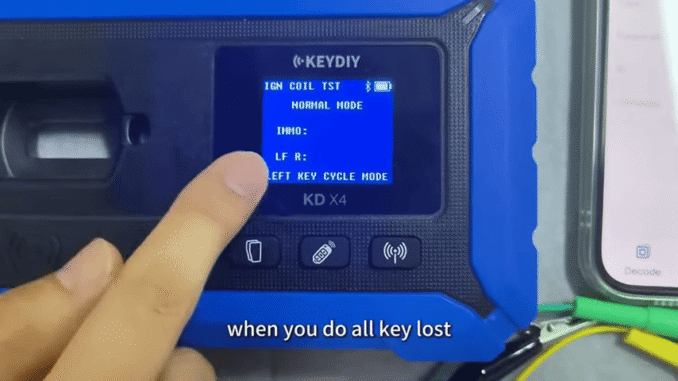
- Long press: Extra modes like chip conversion or “all keys lost” detection (e.g., place near ignition area to read key tree/type like IDA).


- Great for identifying unknown chips quickly.

Button 2: Remote Copy & Generation
- Standard copy:
Long press: Switch to special copy or remote comparison mode.
Works wirelessly for most remotes.
- Long press: Switch to special copy or remote comparison mode.

- Works wirelessly for most remotes.
Button 3: Frequency Detection
- Place key/remote on device.
- Press to scan: Detects 315/433 MHz, 868/900 MHz, or 2.4GHz Bluetooth/UWB smart keys.

- Long press (some versions): Check battery voltage + leakage (confirms if key is healthy/normal).
- Essential for diagnosing RF/Bluetooth issues.
Quick Tips for 2026
1. Update app & firmware regularly for new support: VAG MQB49/5C/5D, BMW BDC2/BDC3 encrypted keys, Toyota used key unlock-free, etc.
2. For OBD IMMO programming (add/learn keys): Connect via OBD cable + app → Select vehicle → Follow guided steps.
3. Standalone mode is fast for roadside jobs; app unlocks full features like cloud data or advanced cloning.
KEYDIY KD-X4 key programmer is simple, reliable, and covers thousands of vehicles. Perfect for daily locksmith work without complexity.
Read also:
How to Use, Share, and Transfer KEYDIY KD Coins & Points
Leave a Reply