
This guide explains how to reset the KD BOND key password for KEYDIY PAK01, PK02, and PK03 remotes, ensuring you can reconnect the device and continue using it normally.
Tools Required for KD BOND Key Password Reset
Before starting the KD BOND key password reset procedure, prepare the following tools:
KEYDIY PAK01 / PAK02 / PAK03
A remote signal generated from:
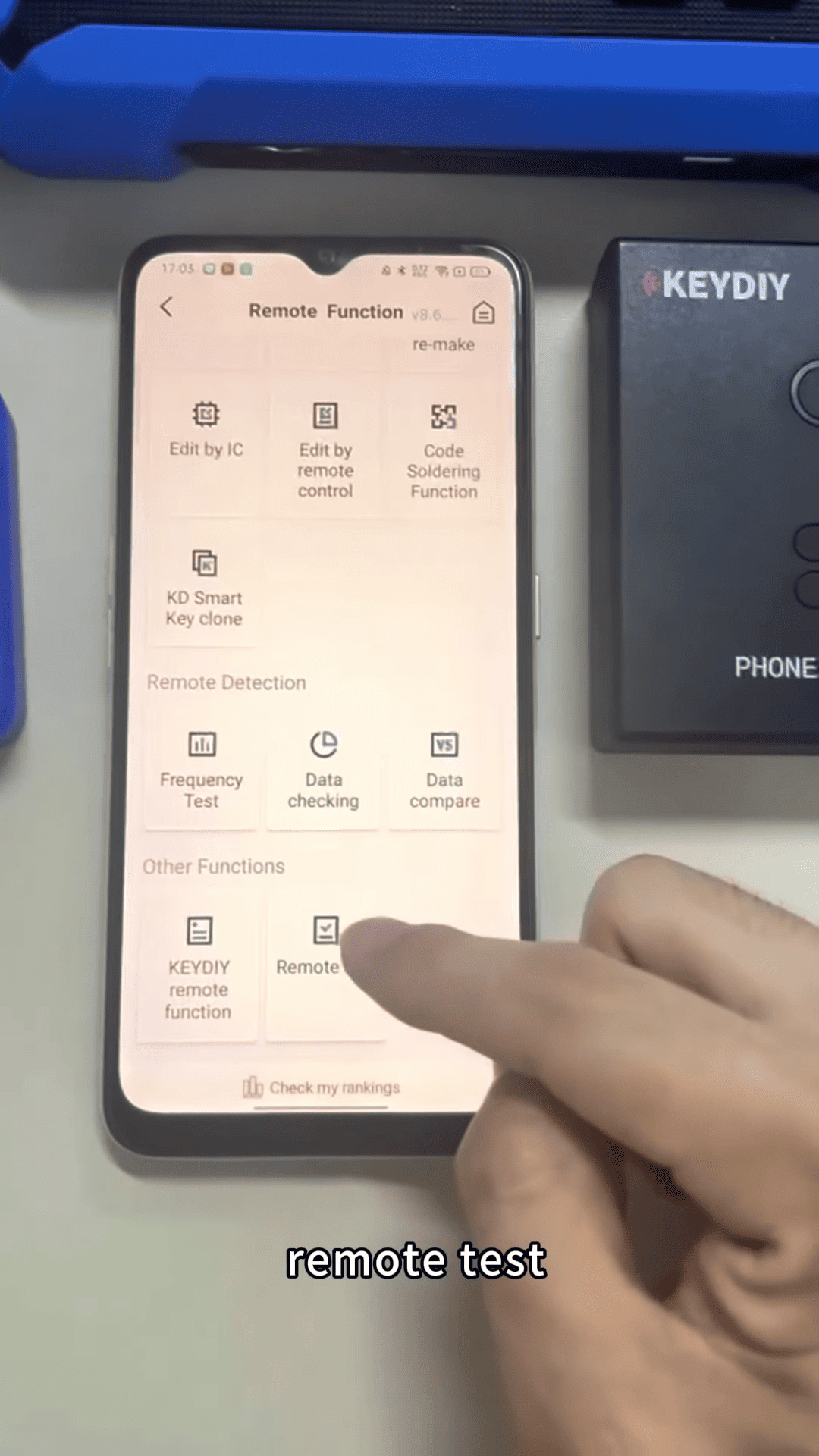
KD app remote test
KD device such as KD-X2, KD-X4, or KD-MAX
Mobile phone with the KD application
These tools allow you to generate the remote signal needed to complete the KD remote password reset process.
Steps
Follow these steps to successfully perform a PAK01 Phone As Key remote password reset.
1. Activate Reset Mode
Press the button on the KD remote:
Press the button 5 times quickly (short presses)
Then press and hold the button once (long press)
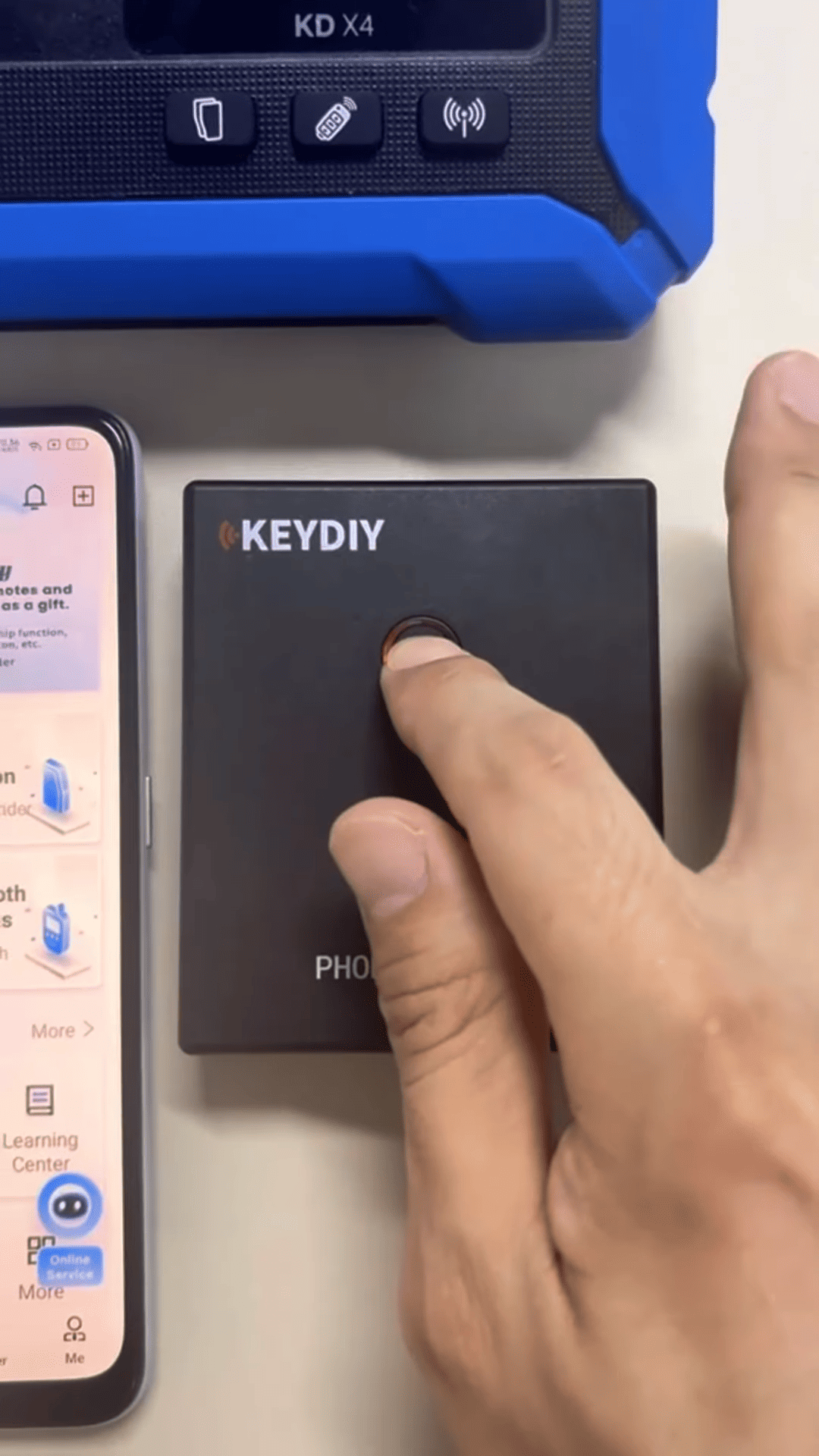
Example sequence:
1 → 2 → 3 → 4 → 5 → 6(long press)
Hold the final press until the indicator light turns on.
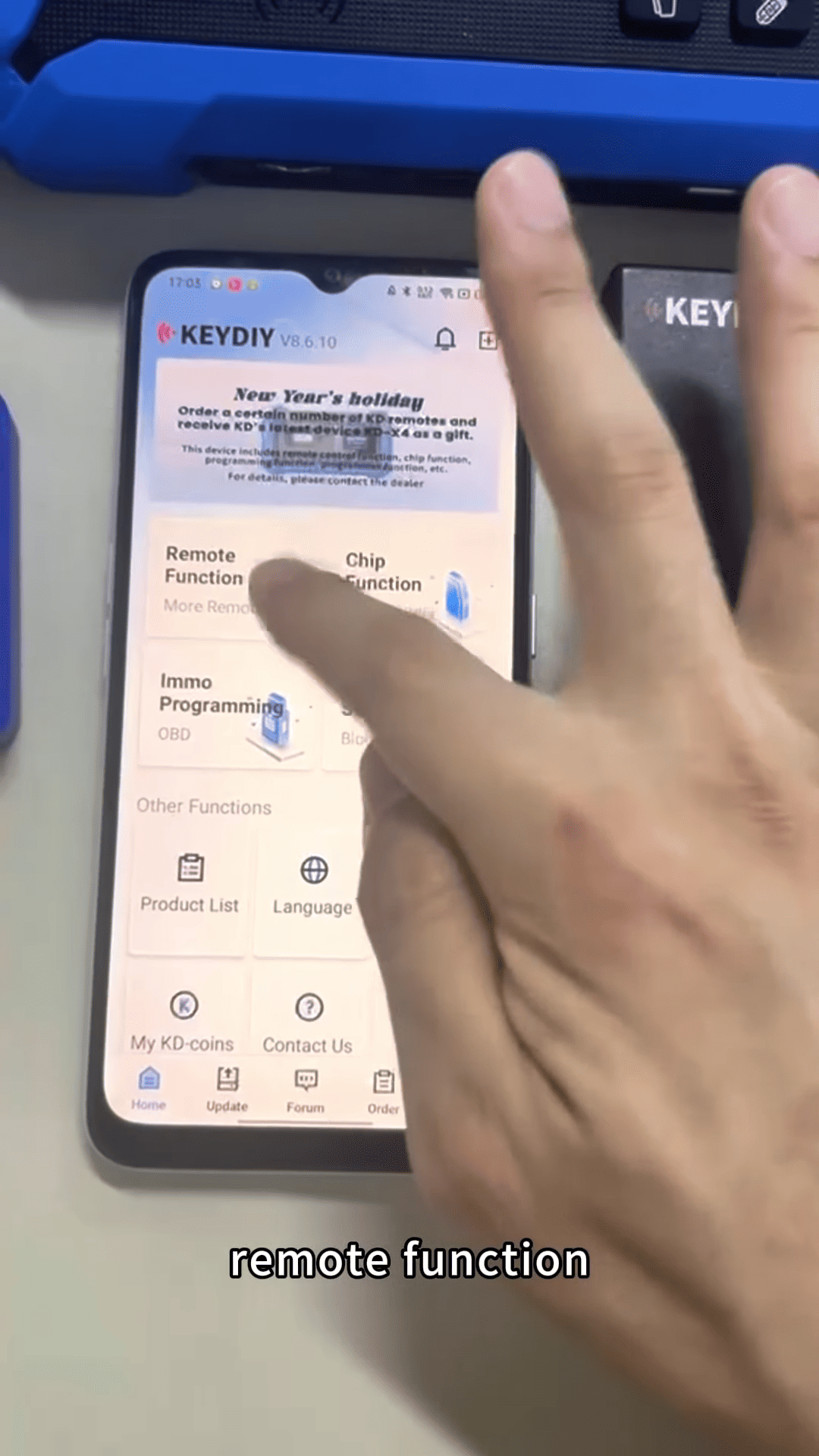
2. Generate the Reset Remote Signal
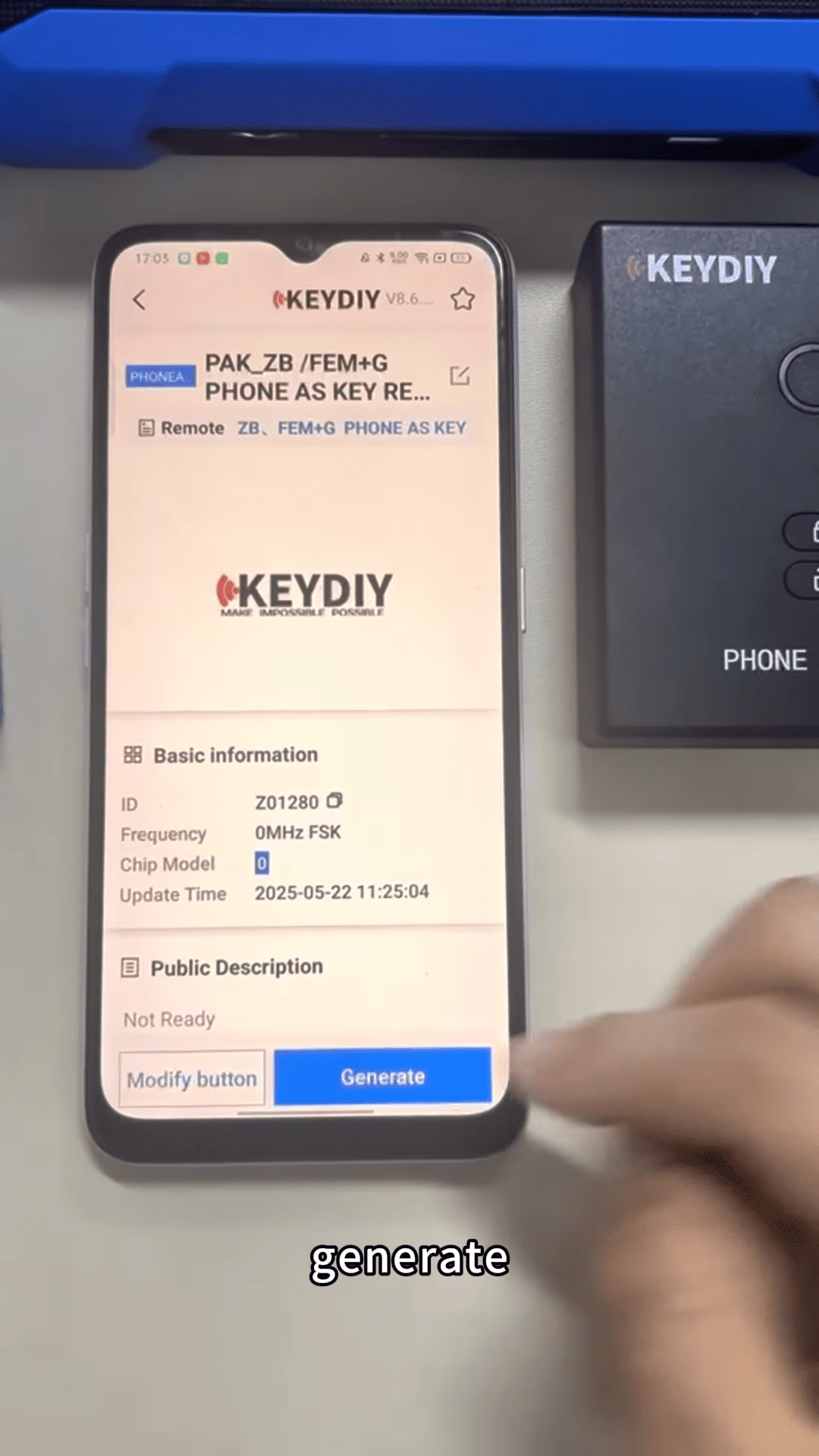
Next, generate a remote test signal using a KD device.
You can use:
KD-MAX
KD-X2
KD-X4
Generate a remote test signal from the SP remote function list.
3. Place the Remote in the Signal Area
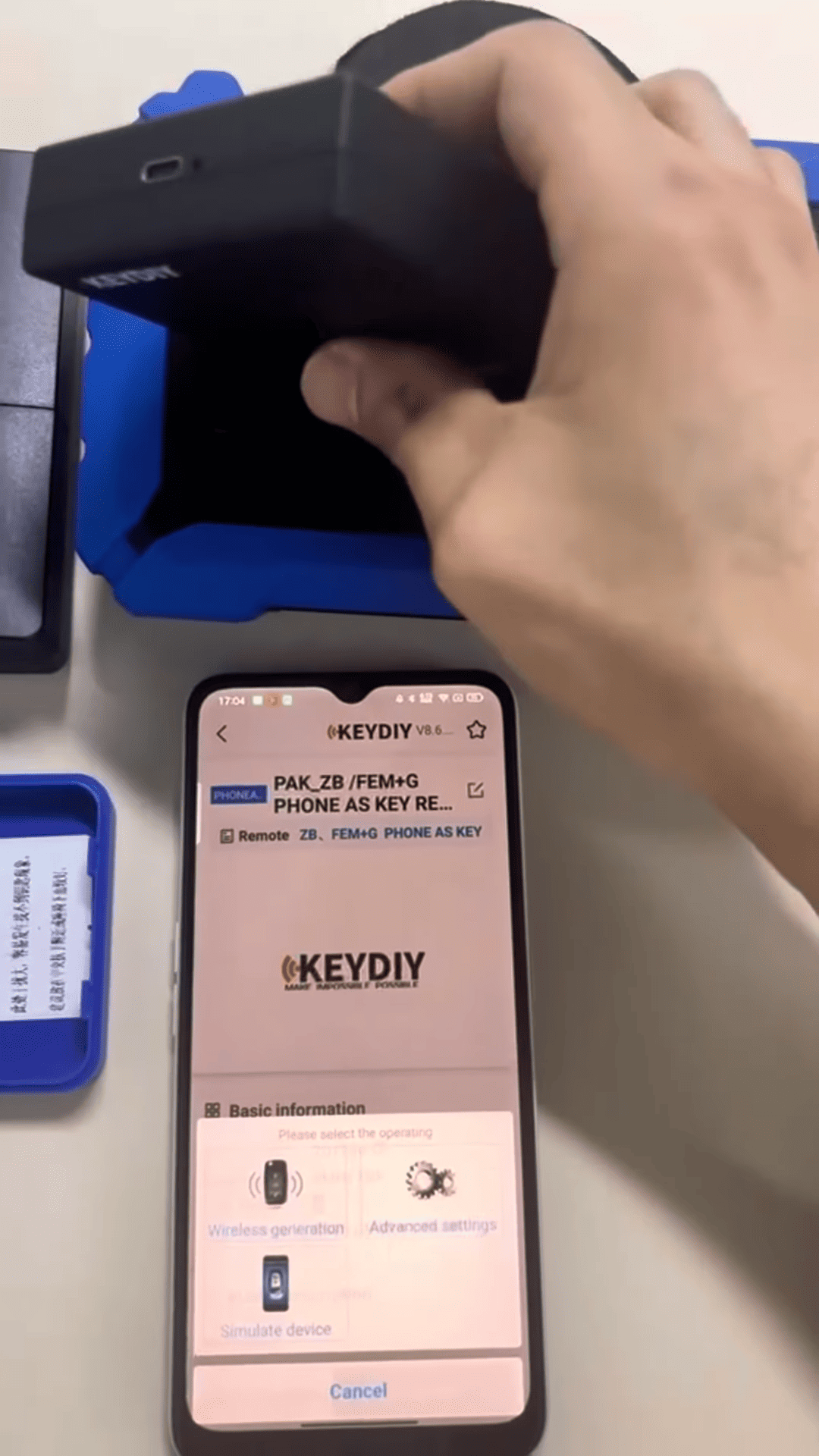
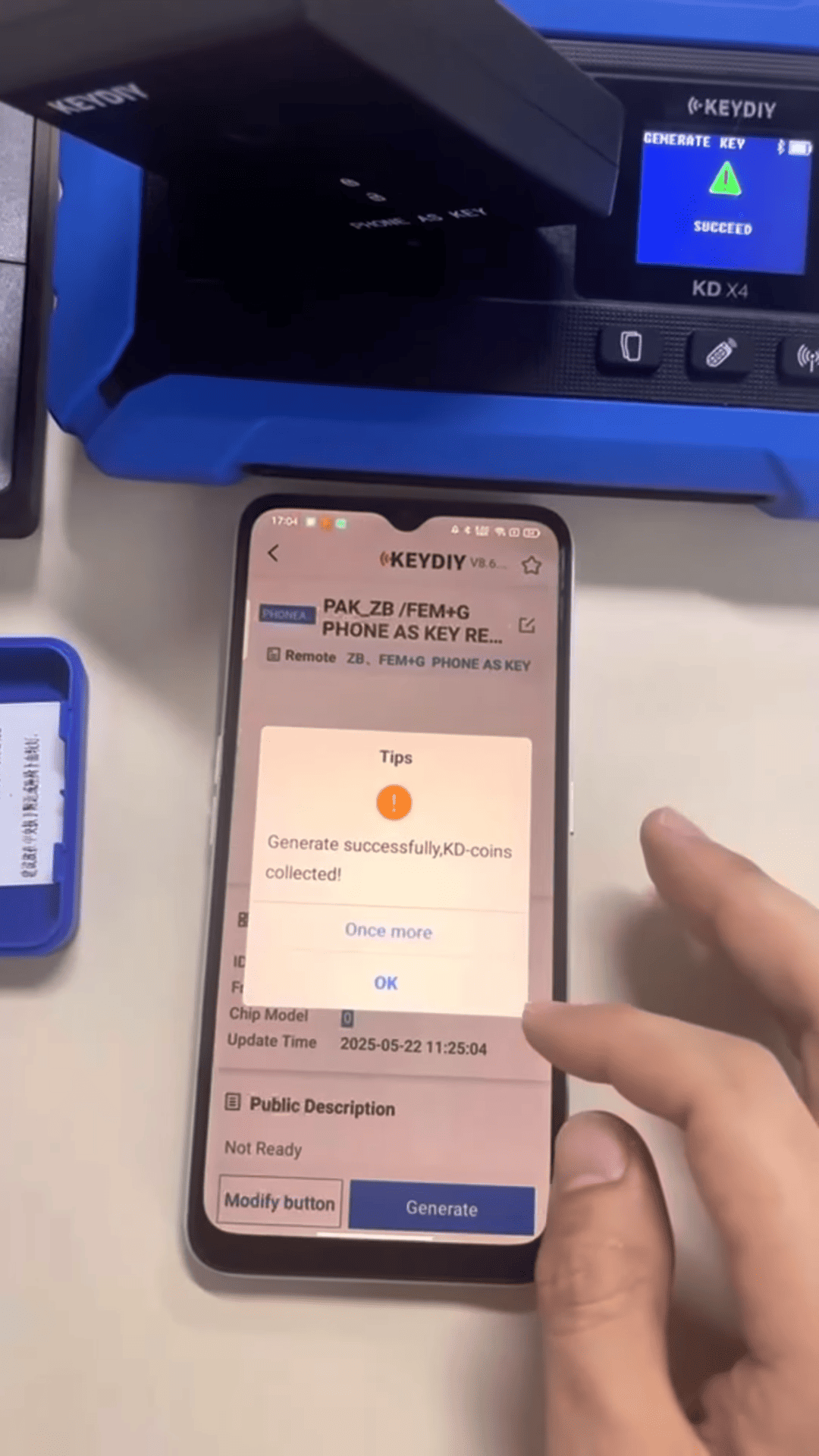
Put PAK01 close to the wireless generation area of the device while the signal is generated.
4. Repeat the Button Operation
Repeat the button sequence:
Press 5 short presses
Then 1 long press
After this step, key password reset will be completed successfully.
Default Password After Password Reset
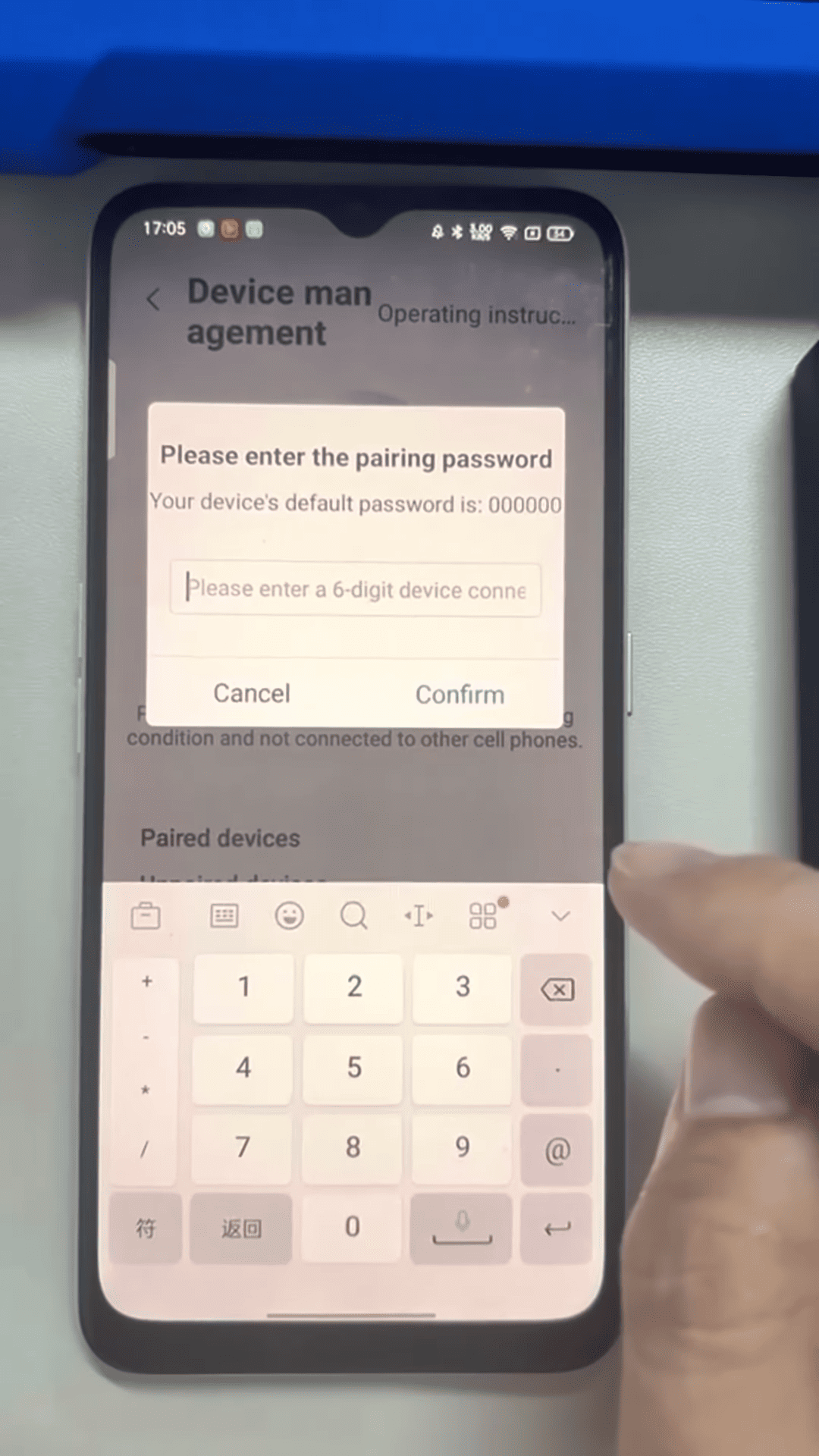
Once remote password reset is finished, the device will return to the default password.
Default password: “yellow”
You can then reconnect the remote through Device Management in the KD application and set a new password if needed.
Reset Method for PK02 and PK03 Remotes
KD PAK01-ZB password reset method for PK02 and PK03 remotes is the same
Conclusion
Performing a KEYDIY PAK01 Phone As key password reset for PK1, PK02, or PK03 is quick and easy when the correct steps are followed. By activating reset mode, generating a remote signal, and repeating the button sequence, you can restore the device and reconnect it to the KD app.
Leave a Reply